
Dreamztech 课程
游览我们的所有课程,包括按主题分类的课程,以找到适合您的学习方法!

Lesson 1 - How to add new Articles / Blog
1. After login to backend, can access this Blog/Articles thru the dashboard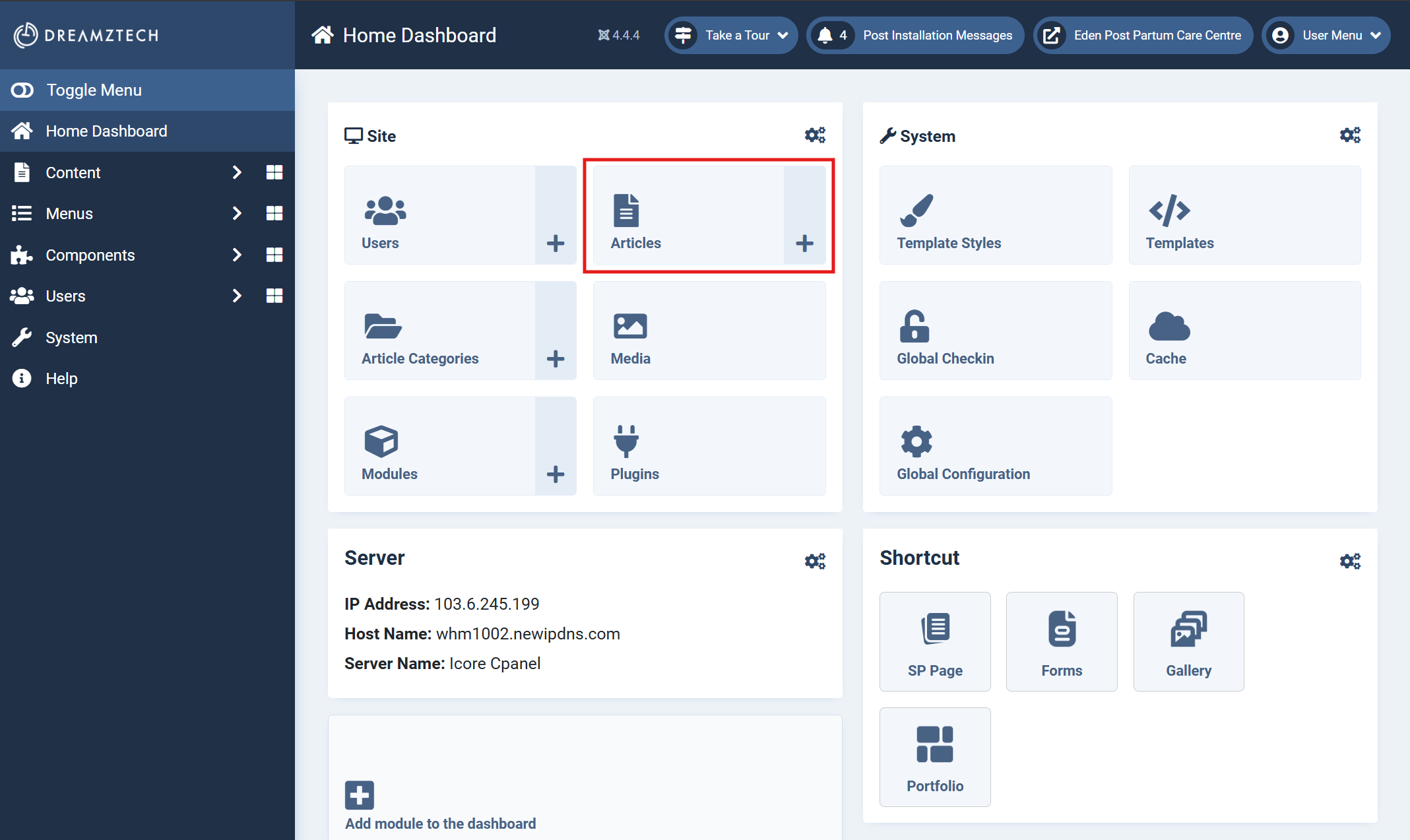
or Content > Articles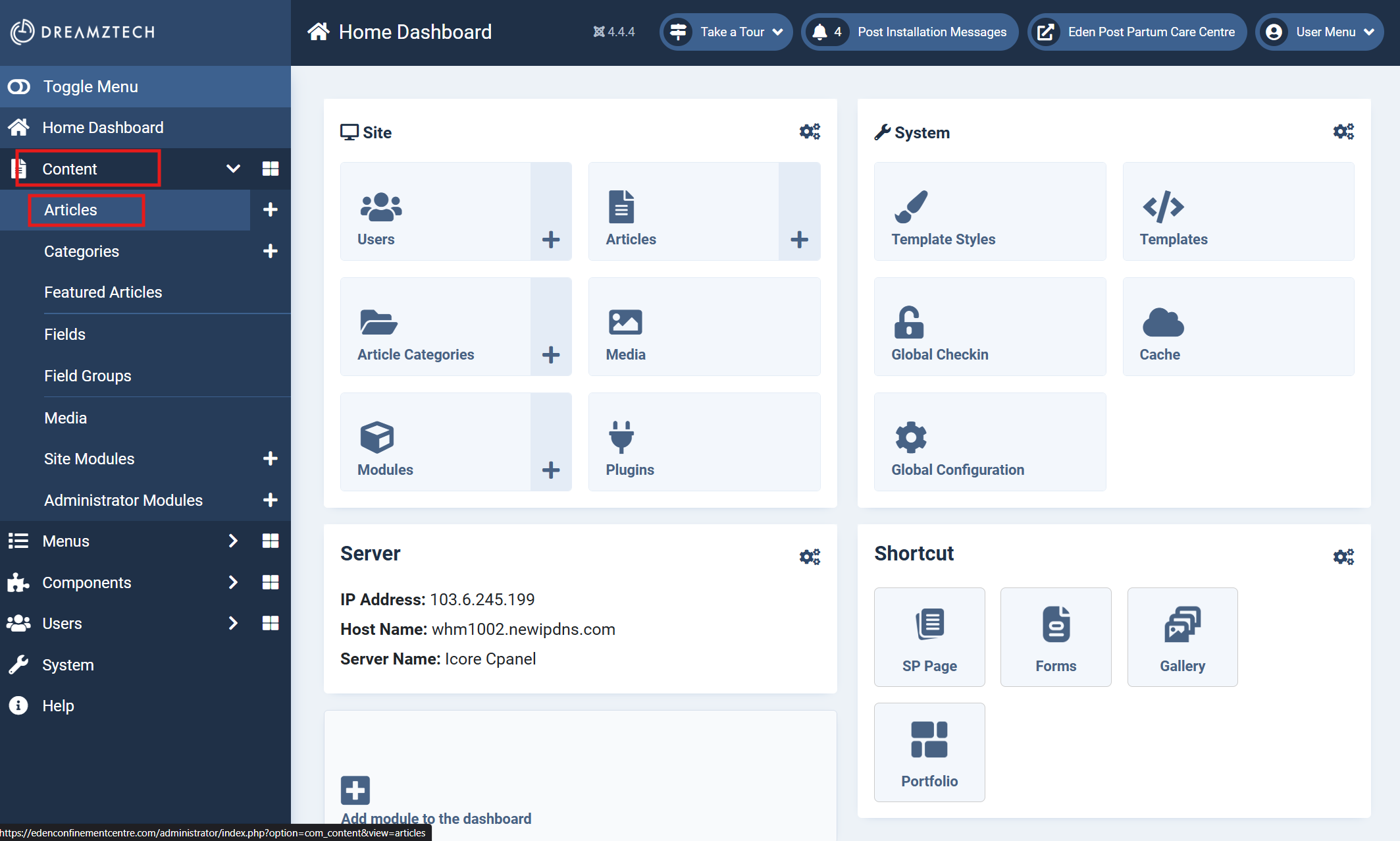
2. You can add new articles with 2 methods (Add New or Duplicate)
A. Add New
B. Duplicate (Refer to Step 3)
2.1 Add New Article
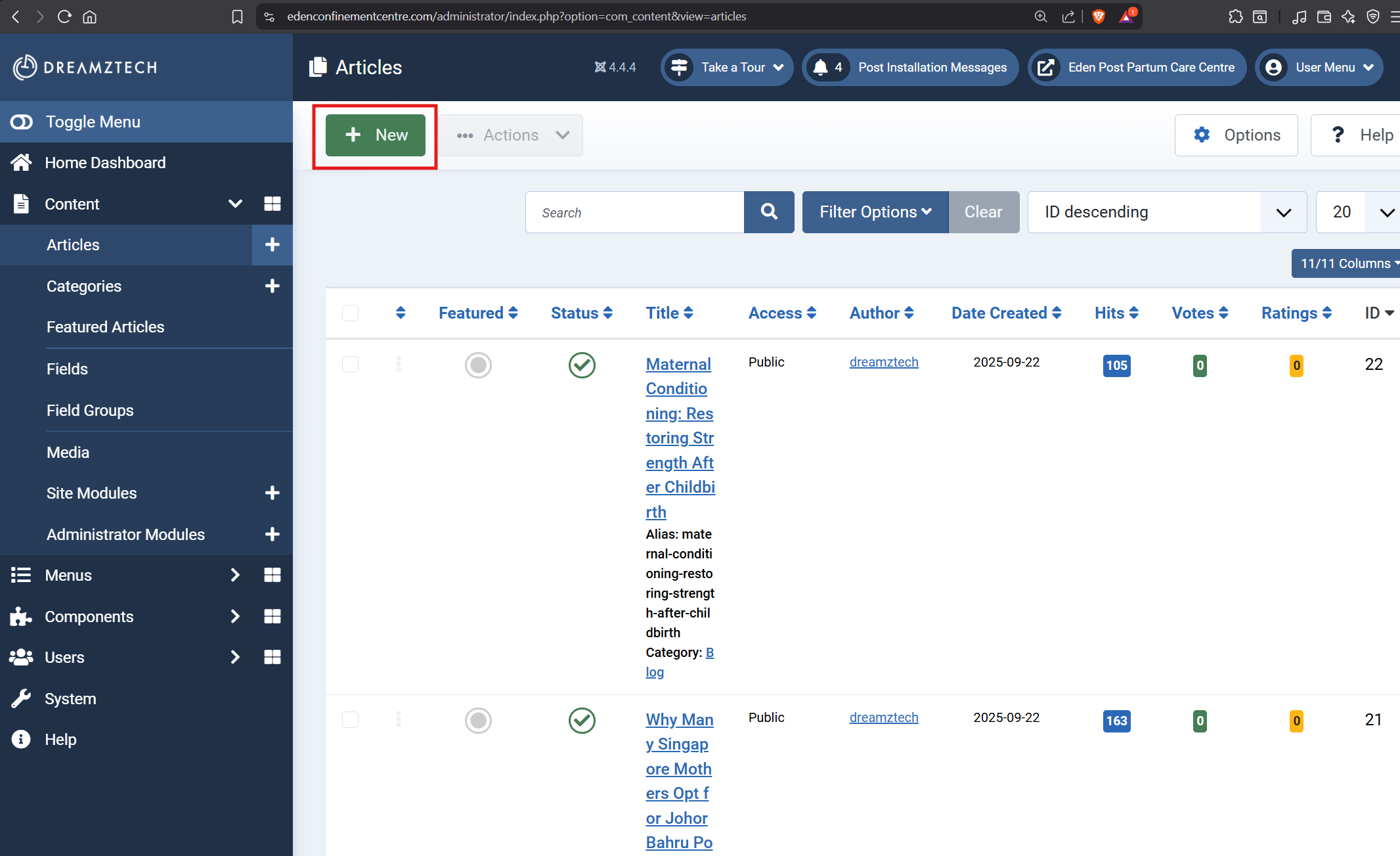
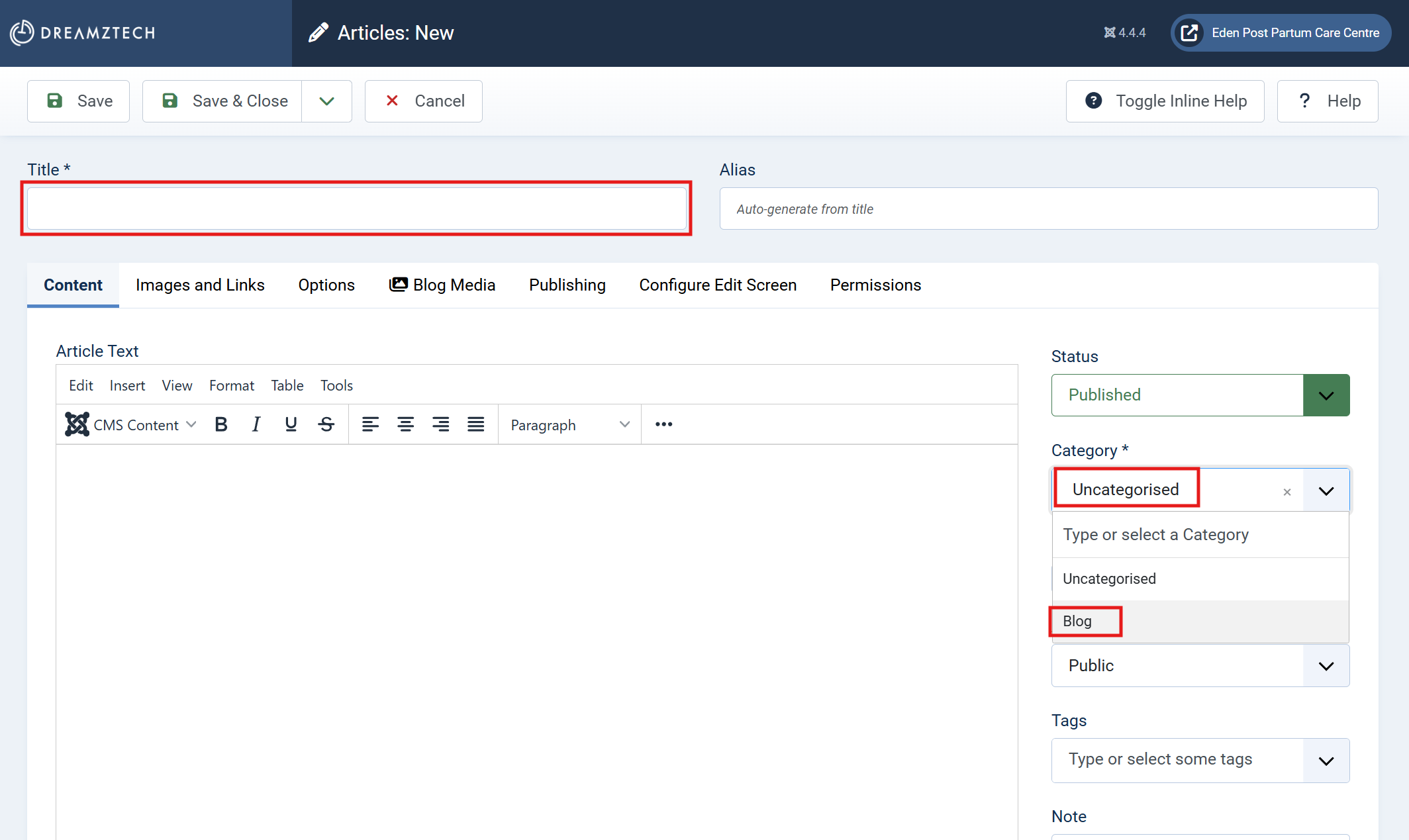
2.2 Enter the title for the Blog/Article, then set Category to the the desired one (In this case, Blog)
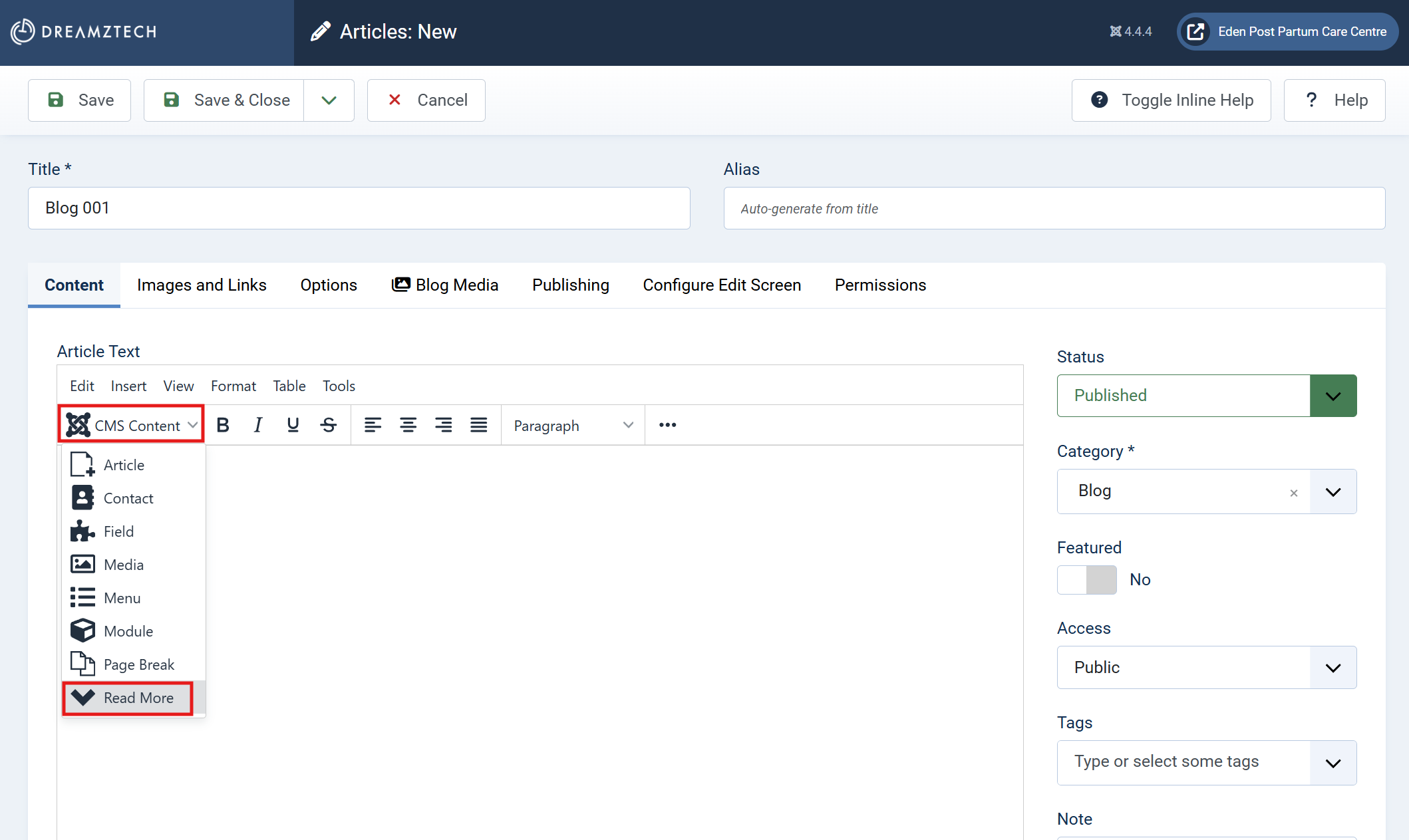
2.3 You can set "Read More" line using CMS Content > Read More
- Texts before "read more line" will be introduction description in the article list
- Texts after "read more line" will be the main content for the article
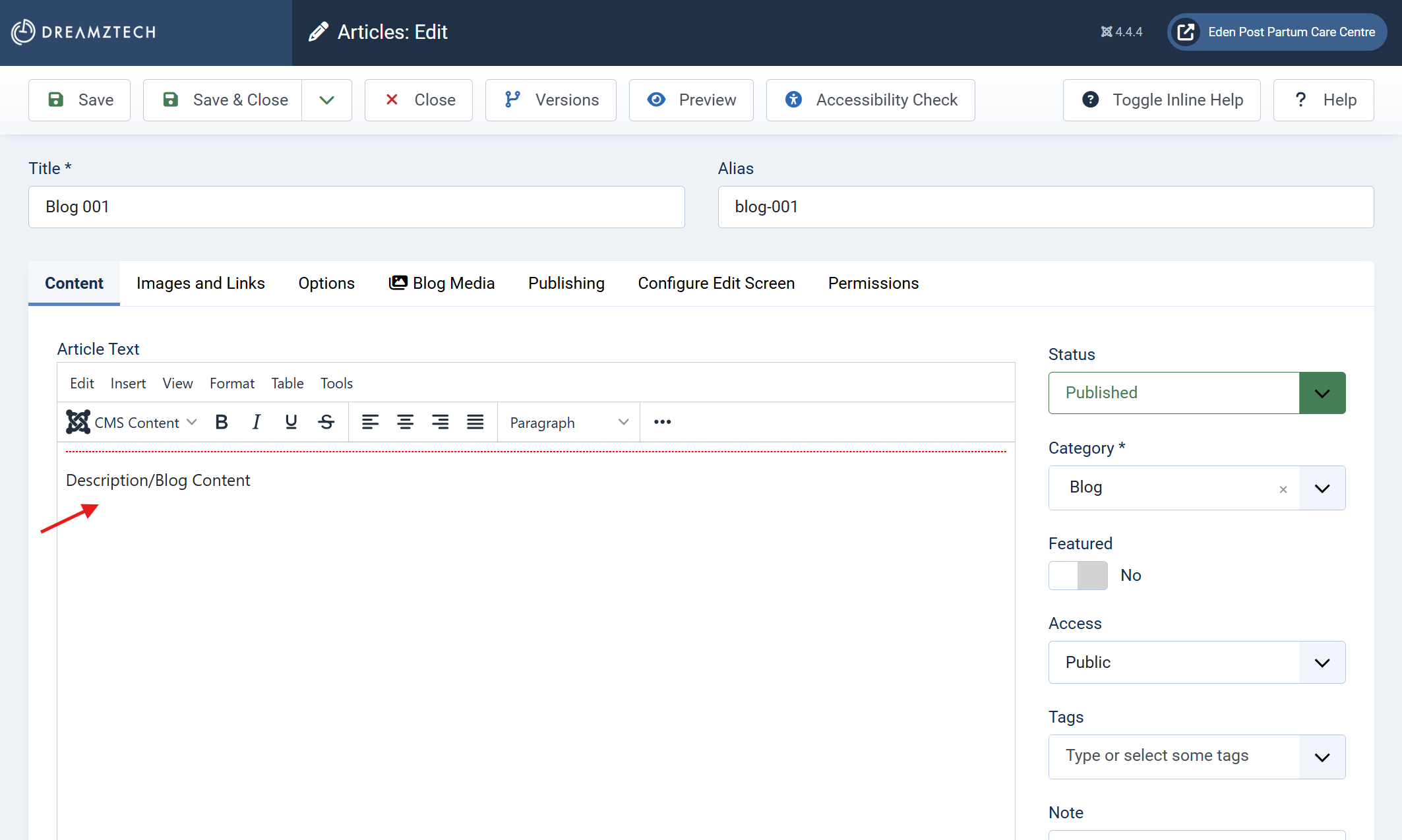
2.4 Enter your content for the blog/article here
- Texts after "read more line" will be the main content for the article
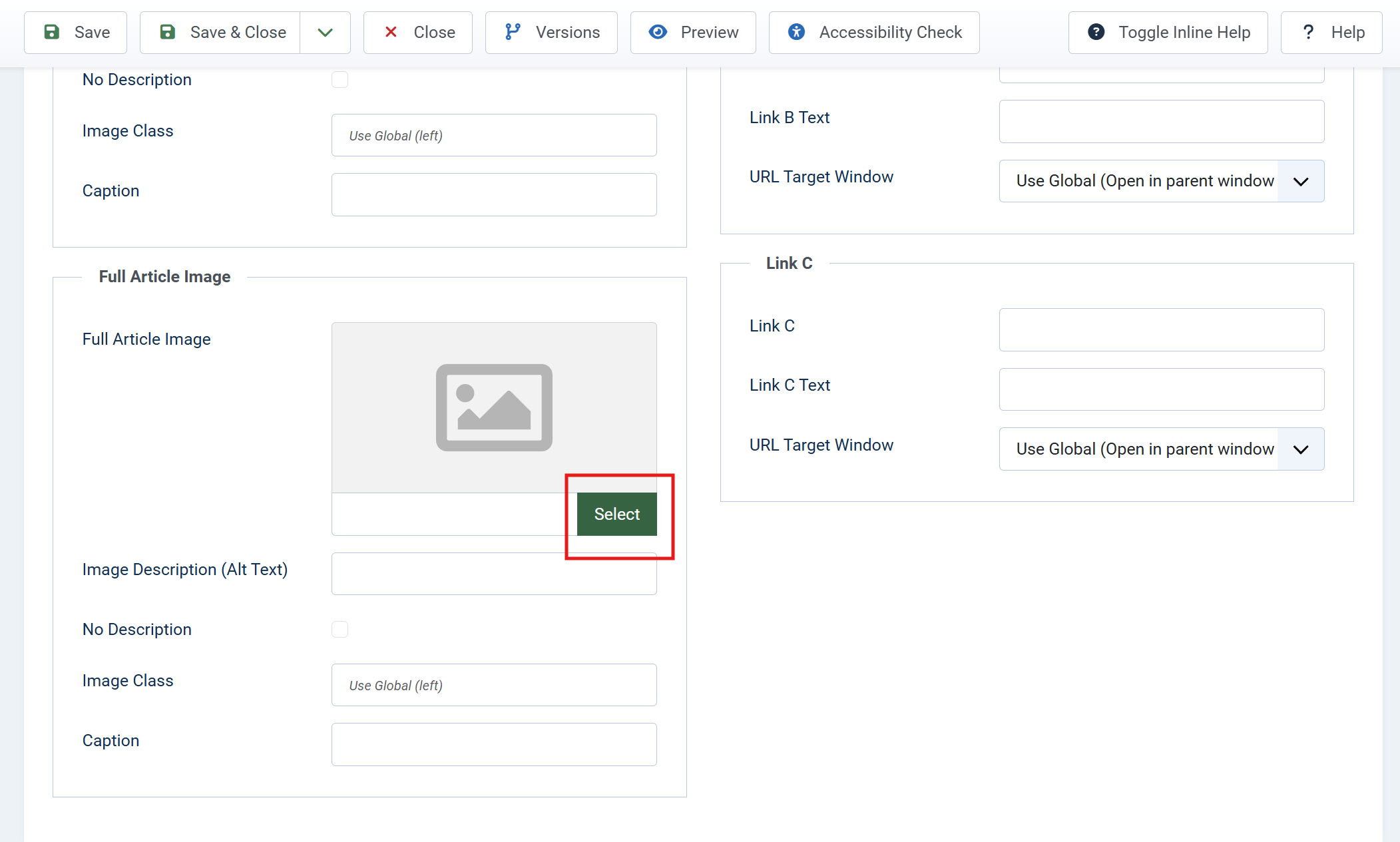
2.5 Then, go to "Images and Links" and select image for the thumbnail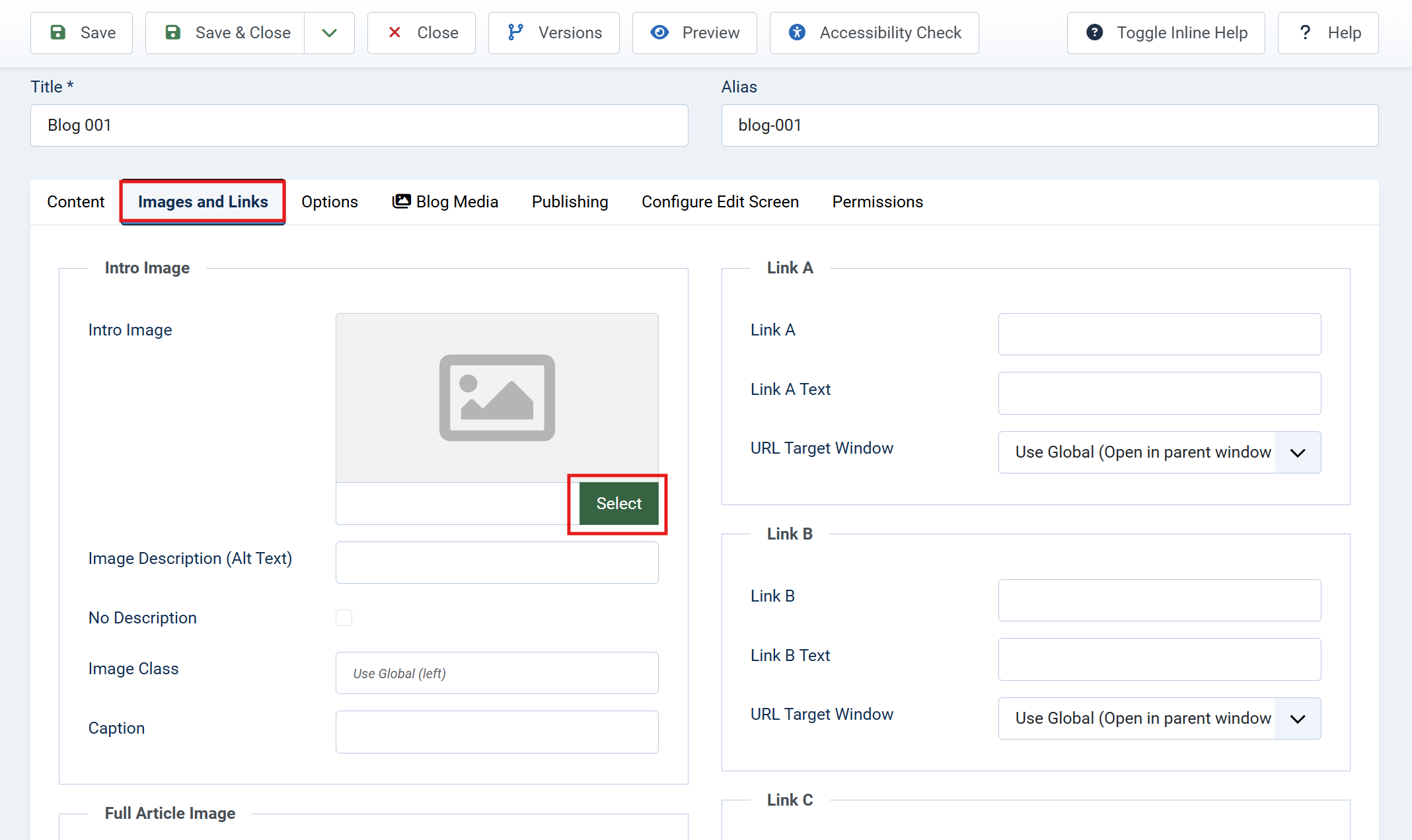
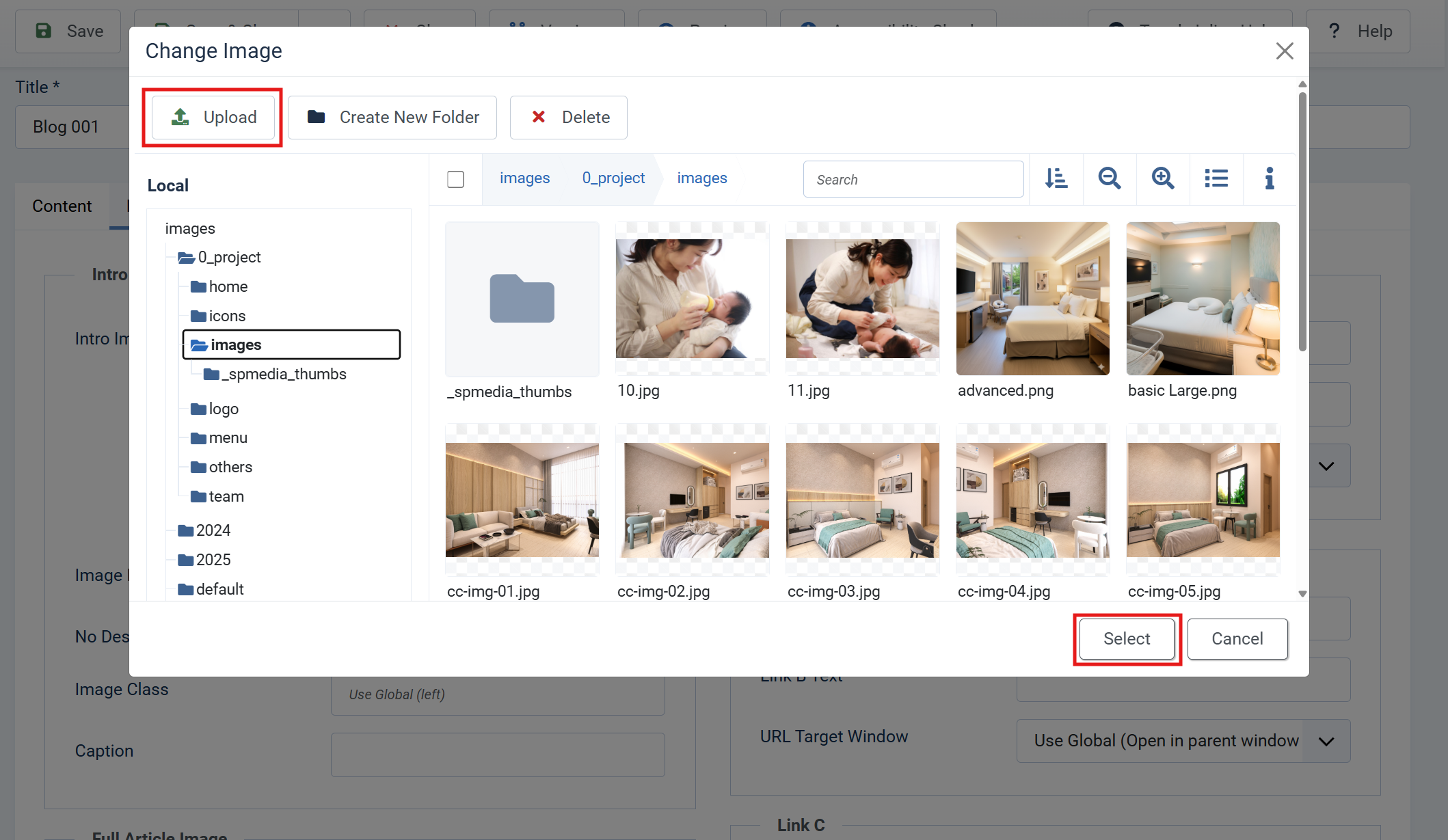
2.6 Upload image to desired location and choose the image you want as thumbnail, then "Select"
2.7 After setting for thumbnail, can scroll down to set image for the article, "Full Article Image" will be the cover image for the article content
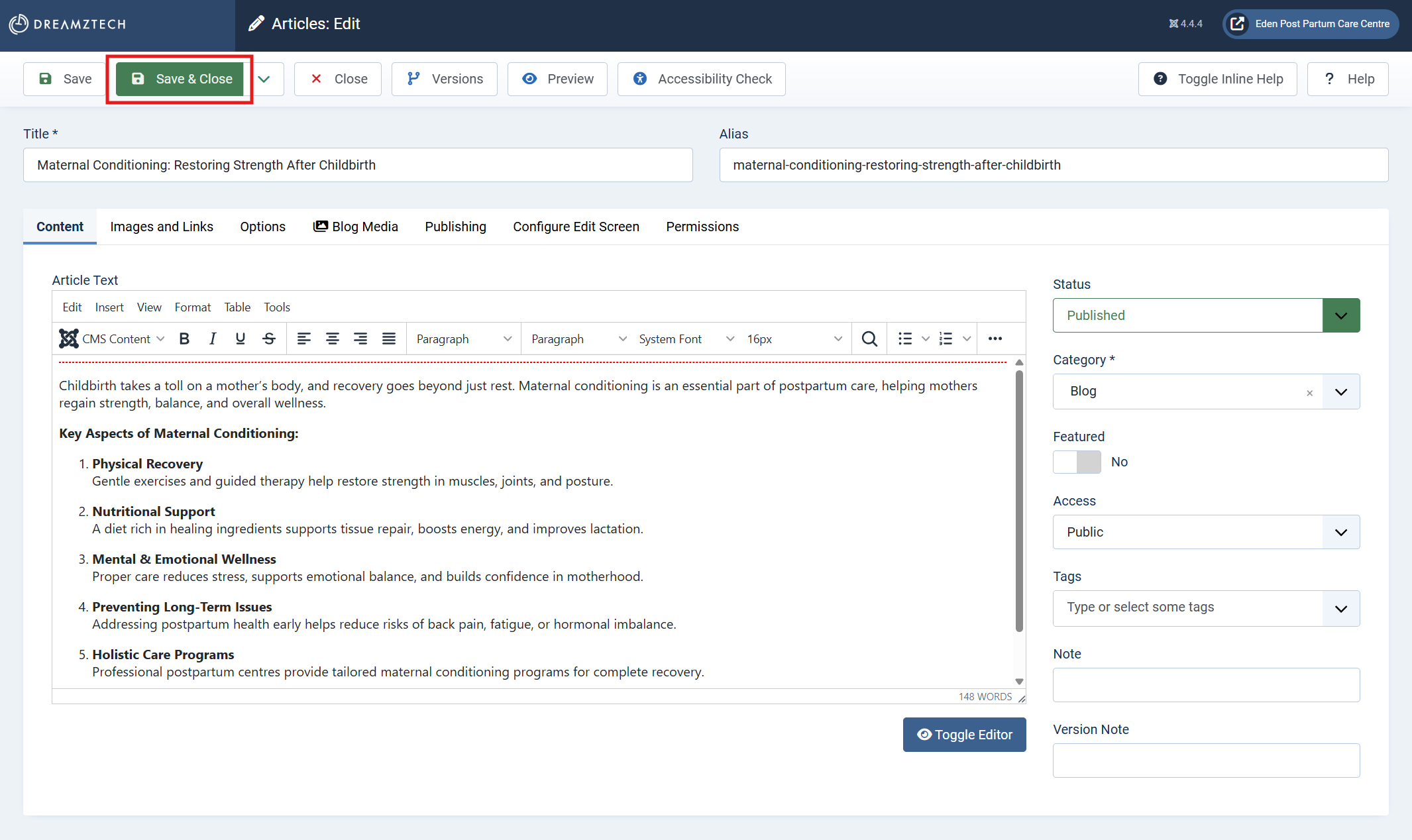
2.8 Then Save
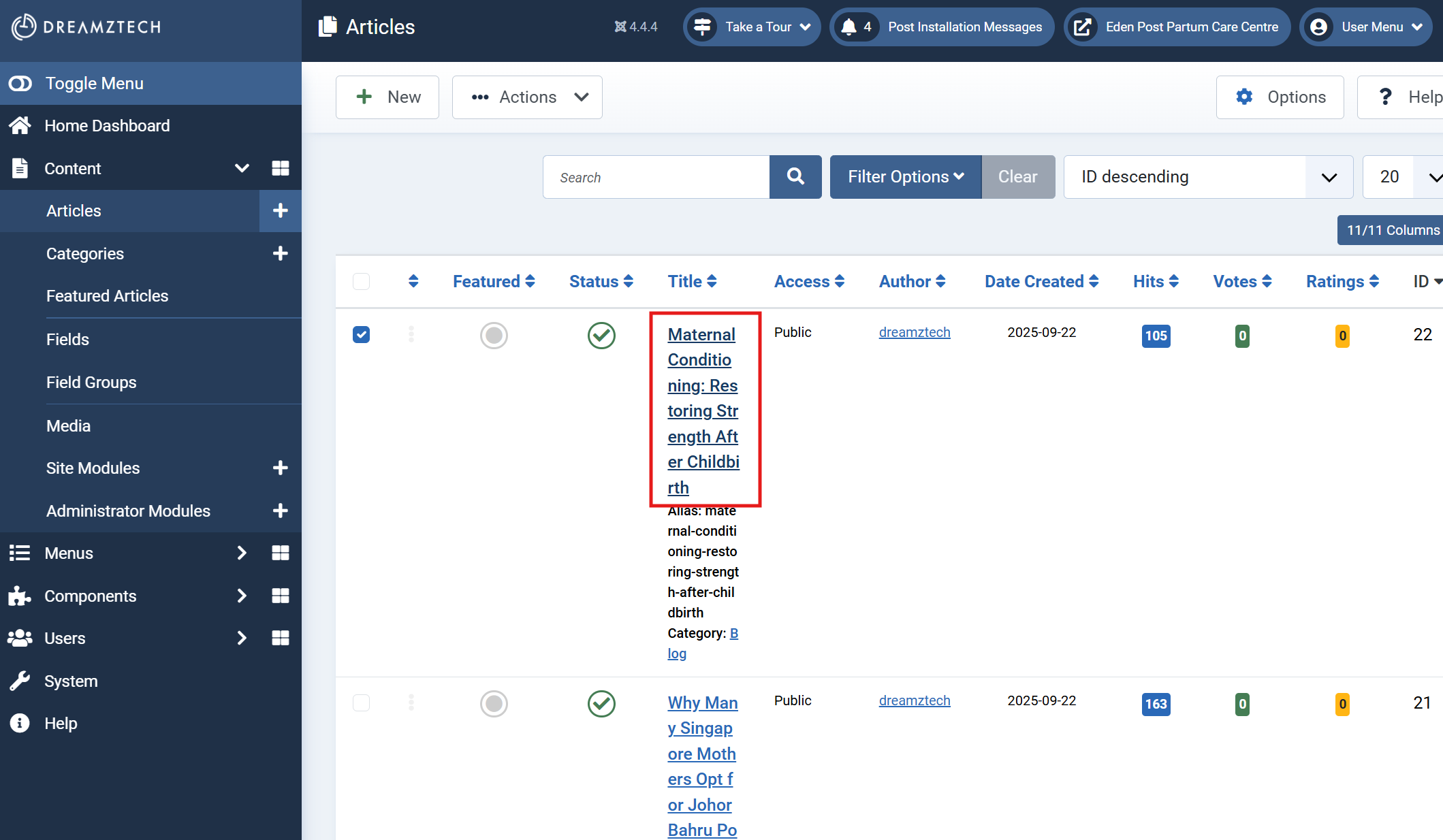
3. (This is for Duplicate method) Click the title into the older article
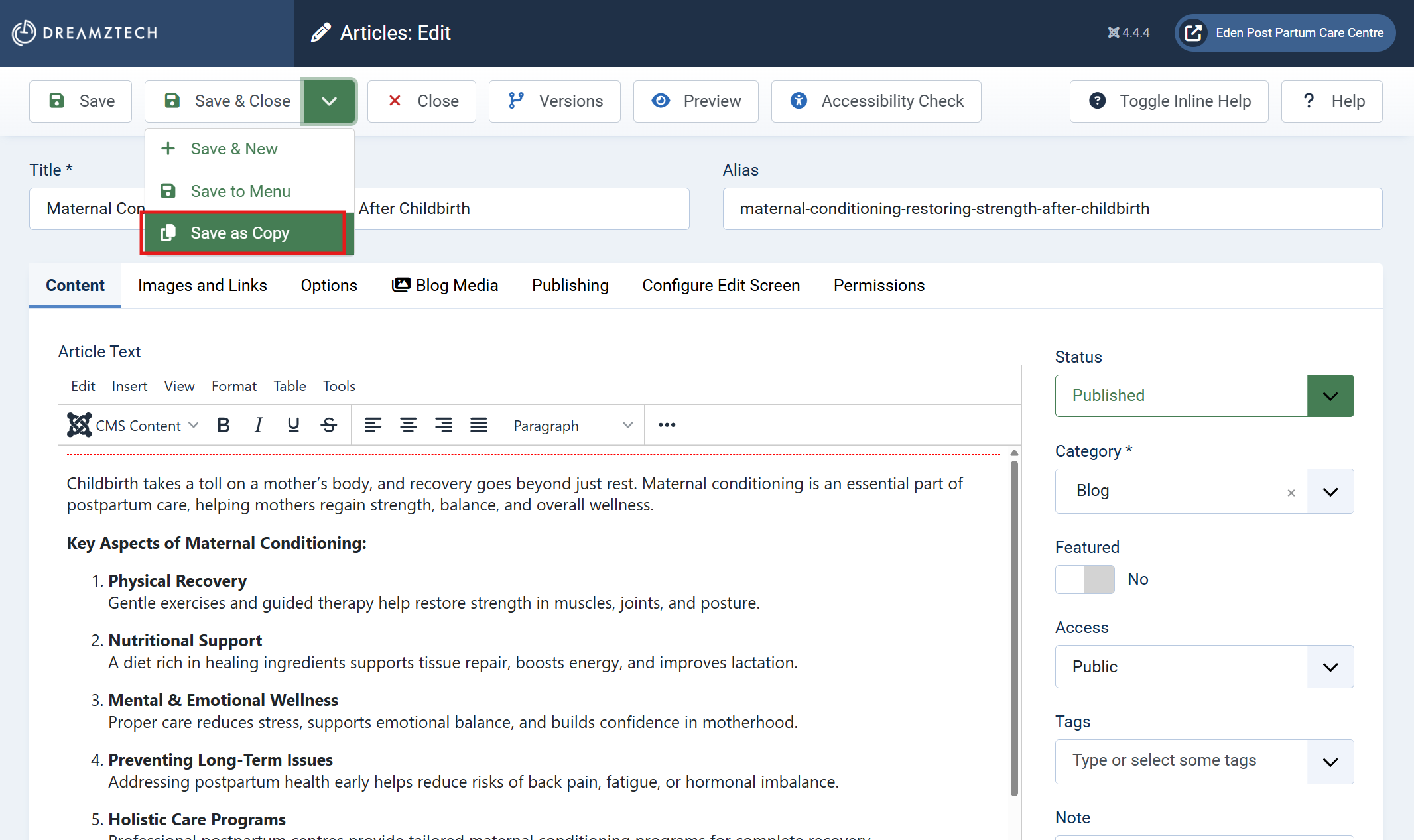
3.1 Then you can use Save as Copy, then just edit the description and images
4. Save
For Joomla 3
Click Here ->>> How to add edit articles
课程表
- Lesson 1 - How to add new Articles / Blog 时长: 0
- Lesson 2 - How to add edit categories articles 时长: 0
- Lesson 3 - How to add edit tag article 时长: 0
- Lesson 4 - How to edit date article 时长: 0
- Lesson 5 - How to change articles ordering 时长: 0
- Lesson 6 - How to edit link menu articles 时长: 0
- Lesson 7 - How to create menu submenu 时长: 0
- How To Upload Article Cover 时长: